
📄 TRANSCRIPTS

Jedes geschlossene RC wird automatisch gespeichert – mit Meldung, Stellungnahmen und Entscheidung, nachlesbar im Dashboard, so wie es in Discord aussah.

Every closed RC is saved automatically – with the report, the statements and the decision, readable in the dashboard just as it looked in Discord.

WANN ENTSTEHT EIN TRANSCRIPT?WHEN IS A TRANSCRIPT CREATED?

Ein Transcript entsteht automatisch, sobald ein RC mit „🔒 RC schließen“ geschlossen und die Rückfrage bestätigt wird. Einen eigenen Knopf oder Befehl dafür gibt es nicht, und die Berechtigung „Transkripte erstellen“ hat keine Wirkung. Wer ein RC schließen darf, löst damit also auch das Transcript aus – siehe Rollen & Rechte.

Kein Transcript entsteht, wenn …

  • jemand den RC-Kanal von Hand löscht,
  • das Panel gelöscht wurde – die Buttons im RC funktionieren dann nicht mehr,
  • der Schließen-Button abgeschaltet ist (Schritt 4 im Editor),
  • die Willkommensnachricht den Typ „Komponenten“ nutzt – dann schlägt das Speichern derzeit fehl, und der Kanal wird trotzdem gelöscht.

A transcript is created automatically as soon as an RC is closed with “🔒 Close RC” and the confirmation is accepted. There is no separate button or command for it, and the “Create Transcripts” permission has no effect. So whoever may close an RC also triggers its transcript – see Roles & permissions.

No transcript is created if …

  • someone deletes the RC channel by hand,
  • the panel was deleted – the buttons in the RC stop working then,
  • the close button is switched off (step 4 in the editor),
  • the welcome message uses the “Components” type – saving currently fails then, and the channel is deleted anyway.

TRANSCRIPTS ANSEHENVIEWING TRANSCRIPTS

Transcripts findest du je Panel: Dashboard → „Race Control“ → auf der Karte des Panels „Transcripts“. Es öffnet sich die Seite „RC Transcripts“; „Zurück“ führt zur Übersicht.
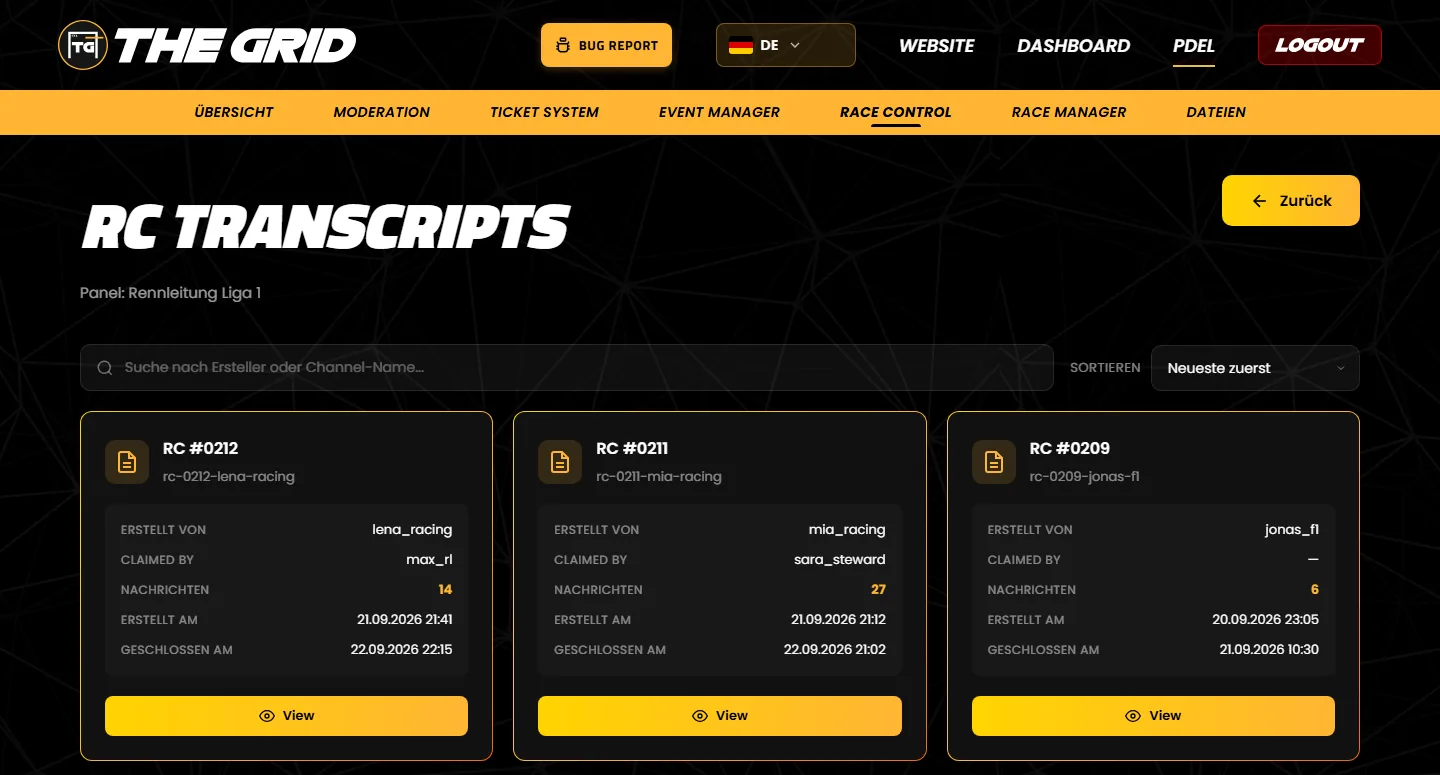
Die Transcripts eines Panels
Pro RC eine Karte, neueste zuerst. Oben suchst und sortierst du.

Was jede Karte zeigt

  • RC #0212 und den Namen des RC-Kanals.
  • Erstellt von – der Ersteller. Claimed by – wer das RC übernommen hat, sonst „—“.
  • Nachrichten – alle Nachrichten im Kanal, auch die des Bots.
  • Erstellt am und Geschlossen am – in der Zeitzone deines Browsers.

Suchen, sortieren, öffnen

  • Suche: nach dem Namen des Erstellers oder des Kanals. Die Liste filtert beim Tippen. Nachrichtentext, RC-Nummer, Claimer und Beteiligte sind nicht durchsuchbar.
  • Sortieren: Neueste zuerst (Standard), Älteste zuerst, Meiste Nachrichten, Wenigste Nachrichten.
  • „View“ öffnet das Transcript in einem neuen Tab.

You find transcripts per panel: dashboard → “Race Control” → “Transcripts” on the panel's card. The “RC Transcripts” page opens; “Zurück” (back) takes you to the overview. This page is currently only available in German.
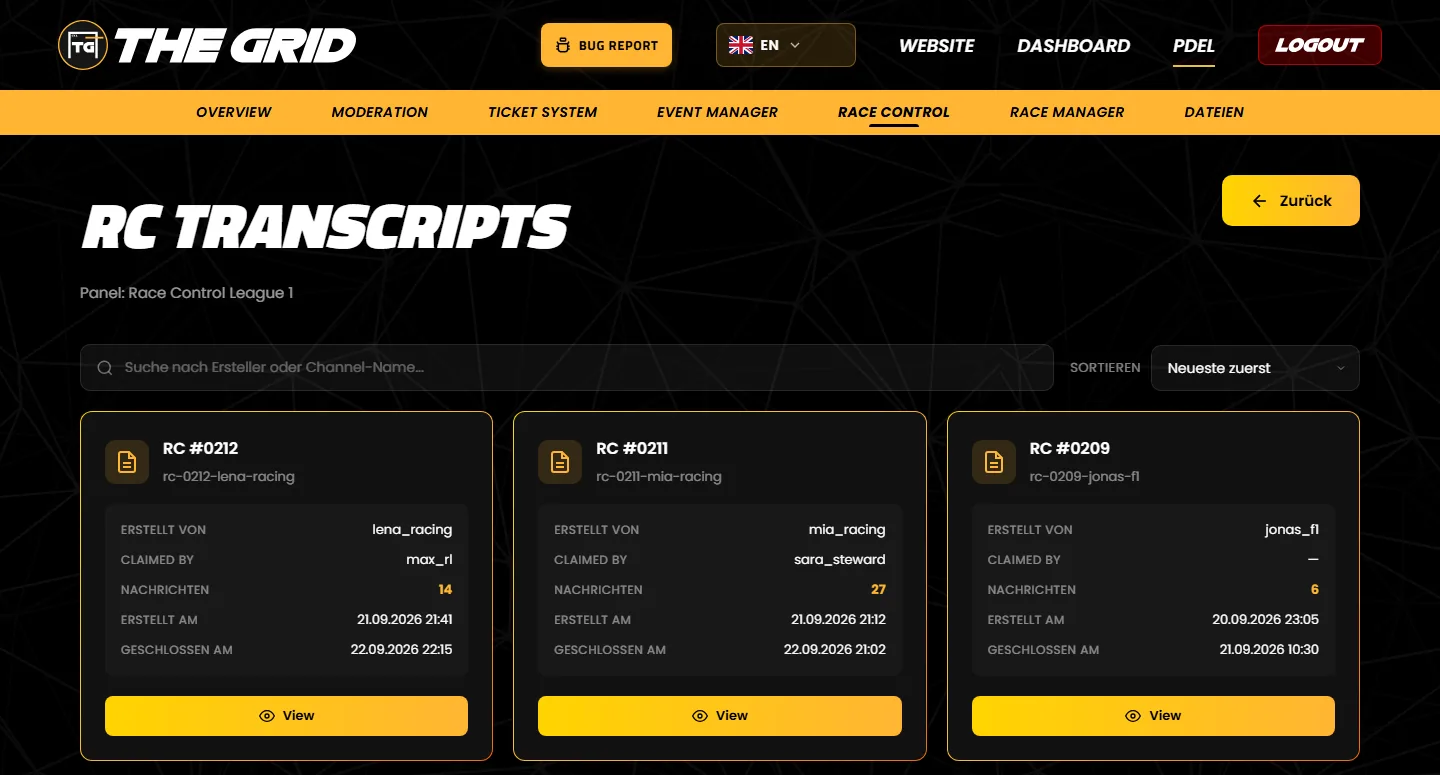
The transcripts of a panel
One card per RC, newest first. Search and sort at the top.

What each card shows

  • RC #0212 and the name of the RC channel.
  • Erstellt von (created by) – the creator. Claimed by – who claimed the RC, otherwise “—”.
  • Nachrichten (messages) – all messages in the channel, including the bot's.
  • Erstellt am (created) and Geschlossen am (closed) – in your browser's time zone.

Search, sort, open

  • Search: by the creator's name or the channel name. The list filters as you type. Message text, RC number, claimer and drivers involved are not searchable.
  • Sort: newest first (default), oldest first, most messages, fewest messages.
  • “View” opens the transcript in a new tab.

WAS IM TRANSCRIPT STEHTWHAT A TRANSCRIPT CONTAINS

Ein Transcript ist eine Kopie des ganzen RC-Kanals als Webseite im Discord-Stil: oben Server, Kanal und Kanalthema, darunter alle Nachrichten mit Profilbild, Name, Rollenfarbe und Uhrzeit.
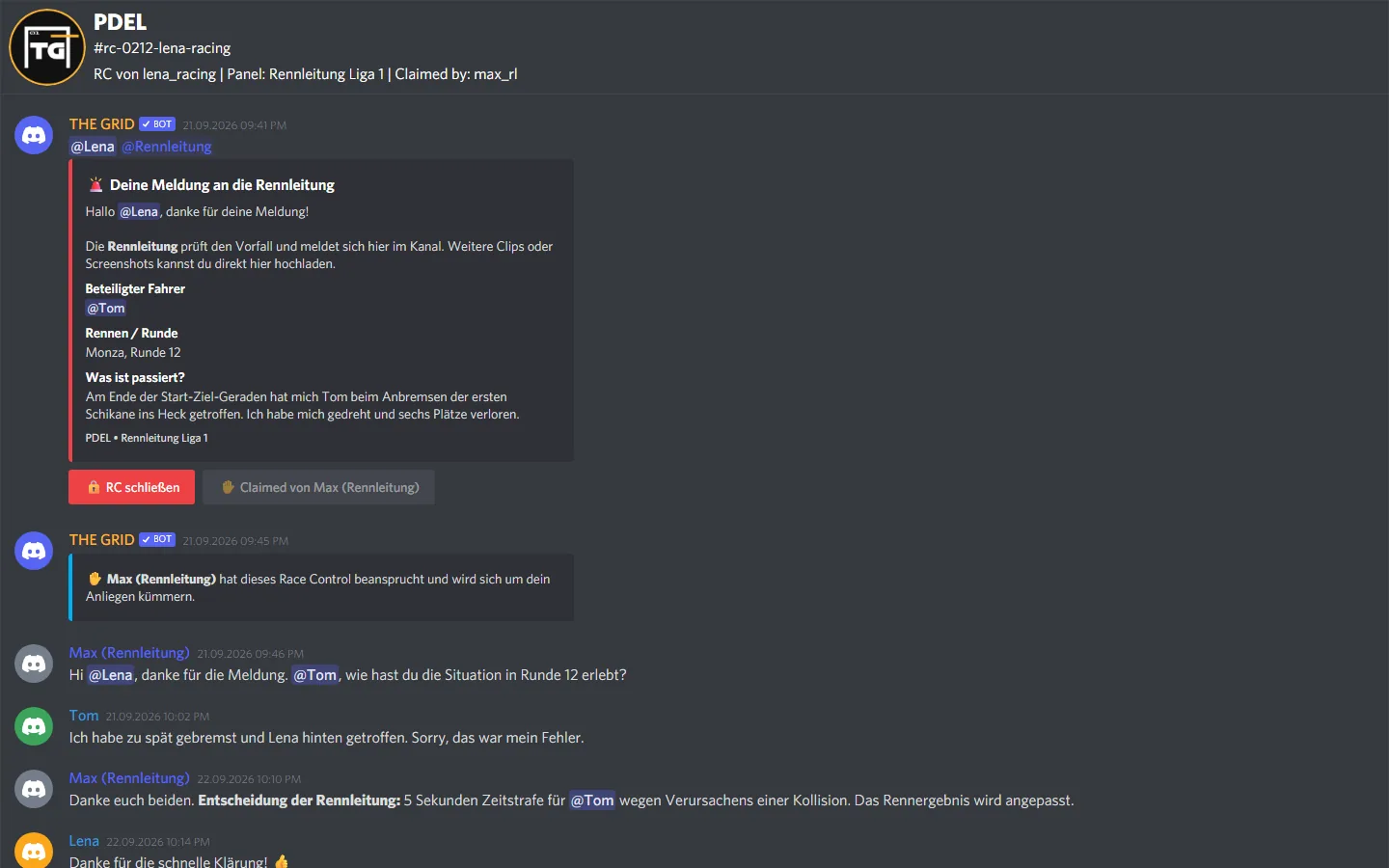
Ein geöffnetes Transcript
Meldung mit Formular-Antworten, Claim-Hinweis und die Stellungnahme des beteiligten Fahrers im Discord-Stil.
  • Enthalten: alle Nachrichten – auch Willkommensnachricht, Formular-Antworten, Claim- und Schließ-Hinweis und die Beiträge hinzugefügter Beteiligter –, Embeds, Antworten auf Nachrichten, Reaktionen und Erwähnungen.
  • Bilder werden im Transcript mitgespeichert und bleiben sichtbar.
  • Andere Dateien wie Videos, Audio oder Dokumente sind nur verlinkt. Da der Kanal gelöscht ist, funktionieren diese Links nach einiger Zeit nicht mehr – sichere wichtige Clips vor dem Schließen.
  • Buttons werden angezeigt, haben aber keine Funktion.
  • Nicht enthalten: Nachrichten, die nur eine Person sehen konnte (etwa die Bestätigungen des Bots), und bereits gelöschte Nachrichten.
  • Die Anzeige braucht eine Internetverbindung. Die Fußzeile ist derzeit immer deutsch.

A transcript is a copy of the whole RC channel as a web page in Discord style: server, channel and channel topic at the top, below that every message with avatar, name, role colour and time.
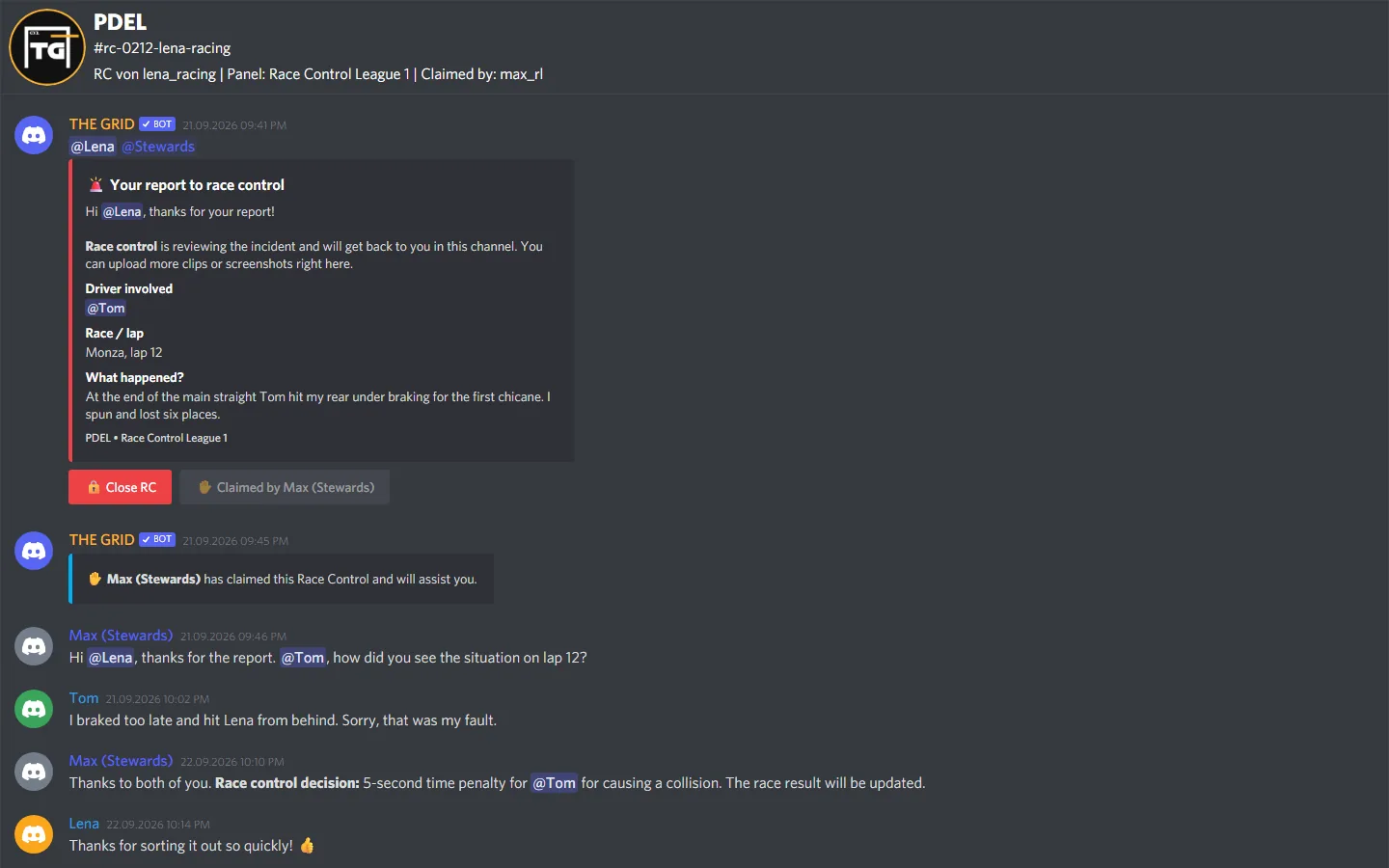
An opened transcript
Report with form answers, claim notice and the statement of the driver involved in Discord style.
  • Included: every message – including the welcome message, form answers, claim and close notices and the posts of added drivers involved –, embeds, replies, reactions and mentions.
  • Images are stored inside the transcript and stay visible.
  • Other files such as videos, audio or documents are only linked. Since the channel is deleted, these links stop working after a while – save important clips before closing.
  • Buttons are shown but do nothing.
  • Not included: messages only one person could see (such as the bot's confirmations) and messages deleted before closing.
  • Viewing needs an internet connection. The footer is currently always in German.

WER TRANSCRIPTS SEHEN KANNWHO CAN SEE TRANSCRIPTS

  • Nur der Server-Besitzer und Mitglieder mit der Discord-Berechtigung „Administrator“ – über das Dashboard.
  • Rennleitungs-Rollen, Ersteller und Beteiligte haben keinen Zugriff. Der Bot verschickt Transcripts weder per Direktnachricht noch in den Log-Kanal; dort steht nur der Dateiname.
  • Soll jemand ein Transcript bekommen – etwa für einen Einspruch –, kann ein Admin es öffnen und die Seite speichern (siehe unten).
  • Only the server owner and members with the Discord permission “Administrator” – through the dashboard.
  • Steward roles, creators and drivers involved have no access. The bot sends transcripts neither by direct message nor to the log channel; the log only shows the file name.
  • If someone should get a transcript – for example for an appeal –, an admin can open it and save the page (see below).

SPEICHERN UND AUFBEWAHRUNGSAVING AND RETENTION

  • Wie lange: Transcripts bleiben erhalten, solange der Bot auf deinem Server ist. Eine automatische Löschung oder eine Obergrenze gibt es derzeit nicht – in keinem Tarif.
  • Herunterladen: Einen eigenen Download-Knopf gibt es nicht. Öffne das Transcript und speichere die Seite im Browser („Seite speichern unter“, Strg + S). Auch die gespeicherte Datei braucht zum Anzeigen eine Internetverbindung.
  • Löschen: Einzelne Transcripts lassen sich im Dashboard nicht löschen.
  • Gelöschtes Panel: Die Transcripts bleiben gespeichert. Weil der Knopf mit der Panel-Karte verschwindet, erreichst du sie aber nur noch über einen vorher gespeicherten Link zur Transcript-Seite – dort steht dann „Panel: Gelöschtes Panel“. Setze vor dem Löschen ein Lesezeichen oder sichere wichtige Transcripts.
  • Bot vom Server entfernt: Der Server-Besitzer bekommt eine Direktnachricht. Nach 14 Tagen entfernt der Bot die Daten des Servers aus seiner Datenbank; RCs und Transcripts sind danach im Dashboard nicht mehr abrufbar. Erinnerungen kommen nach 6 und nach 13 Tagen. Lädst du den Bot in dieser Zeit wieder ein, entfällt die Löschung. Über den Knopf „🗑️ Alle Daten sofort löschen“ in der Direktnachricht geschieht das sofort.
💡

Tipp: Benennt RC-Kanäle nicht von Hand um – sonst lässt sich das Transcript im Dashboard womöglich nicht öffnen.

  • How long: transcripts are kept as long as the bot is on your server. There is currently no automatic deletion and no upper limit – in any plan.
  • Downloading: there is no download button. Open the transcript and save the page in your browser (“Save page as”, Ctrl + S). The saved file also needs an internet connection to display.
  • Deleting: individual transcripts cannot be deleted in the dashboard.
  • Deleted panel: its transcripts stay stored. Since the button disappears with the panel card, you can only reach them through a previously saved link to the transcripts page – which then shows “Panel: Gelöschtes Panel” (deleted panel). Bookmark the page or save important transcripts before you delete a panel.
  • Bot removed from the server: the server owner gets a direct message. After 14 days the bot removes the server's data from its database; RCs and transcripts can then no longer be opened in the dashboard. Reminders come after 6 and after 13 days. If you invite the bot again within that time, the deletion is cancelled. The “🗑️ Delete all data now” button in the direct message does this immediately.
💡

Tip: do not rename RC channels by hand – otherwise the transcript may not open in the dashboard.

NOCH FRAGEN?STILL HAVE QUESTIONS?

Tritt unserem Discord-Server bei – das Team hilft dir bei der Einrichtung gerne weiter.

Join our Discord server – the team is happy to help you with the setup.