
Frag vor dem Öffnen eines Tickets die wichtigsten Infos ab – mit Textfeldern, Auswahllisten, Checkboxen und Datei-Upload. In Discord heißen diese Fenster „Modals“.
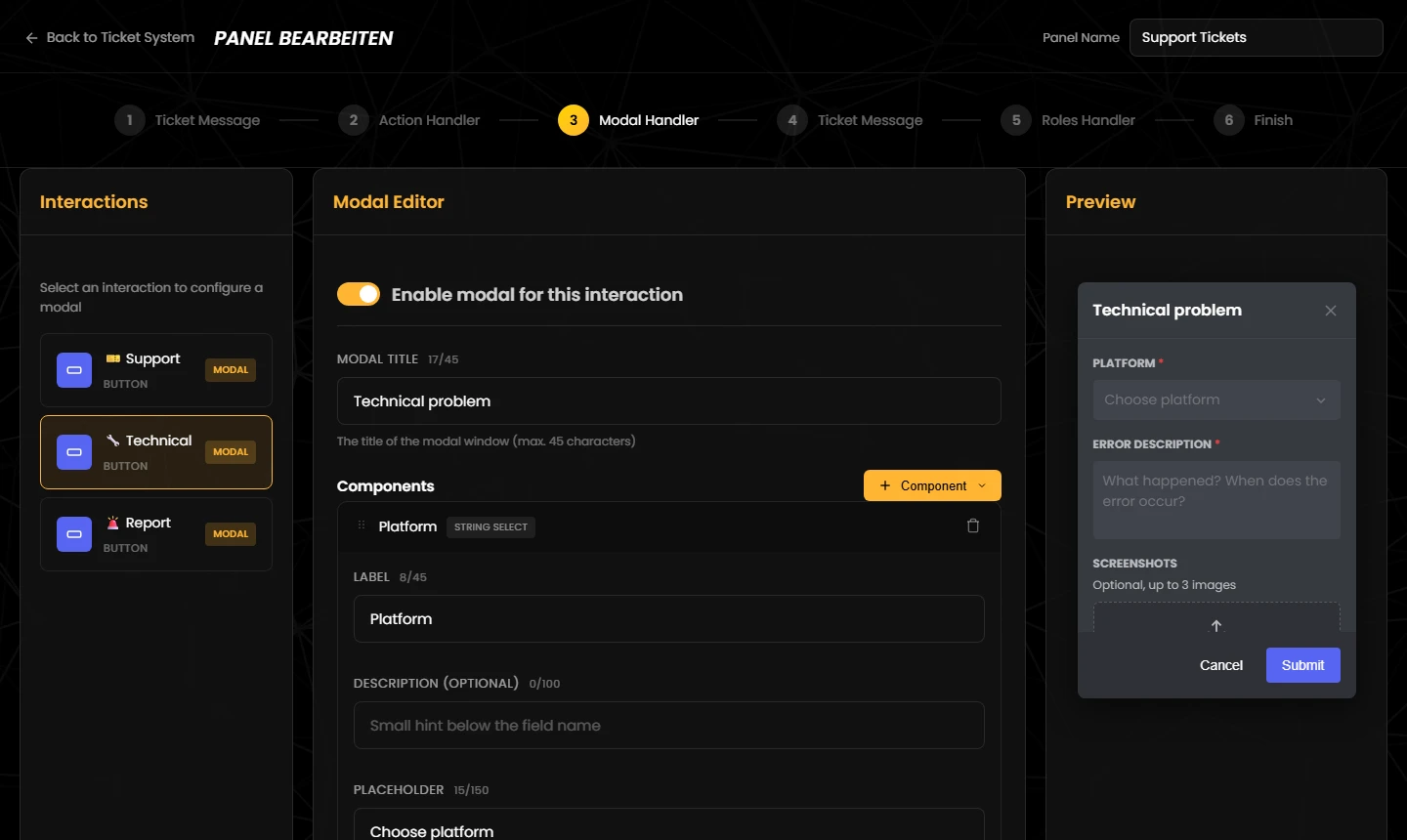
Ask for the key details before a ticket is opened – with text fields, select menus, checkboxes and file uploads. Discord calls these windows “modals”.
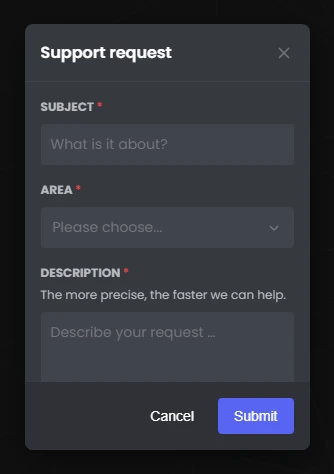
Klickt ein Mitglied auf einen Button (oder wählt eine Option), zeigt Discord ein Fenster mit Eingabefeldern. Erst nach „Absenden“ legt der Bot das Ticket an; die Antworten stehen dann im Ticket-Kanal. Schließt das Mitglied das Fenster, passiert nichts – es entsteht kein Ticket.
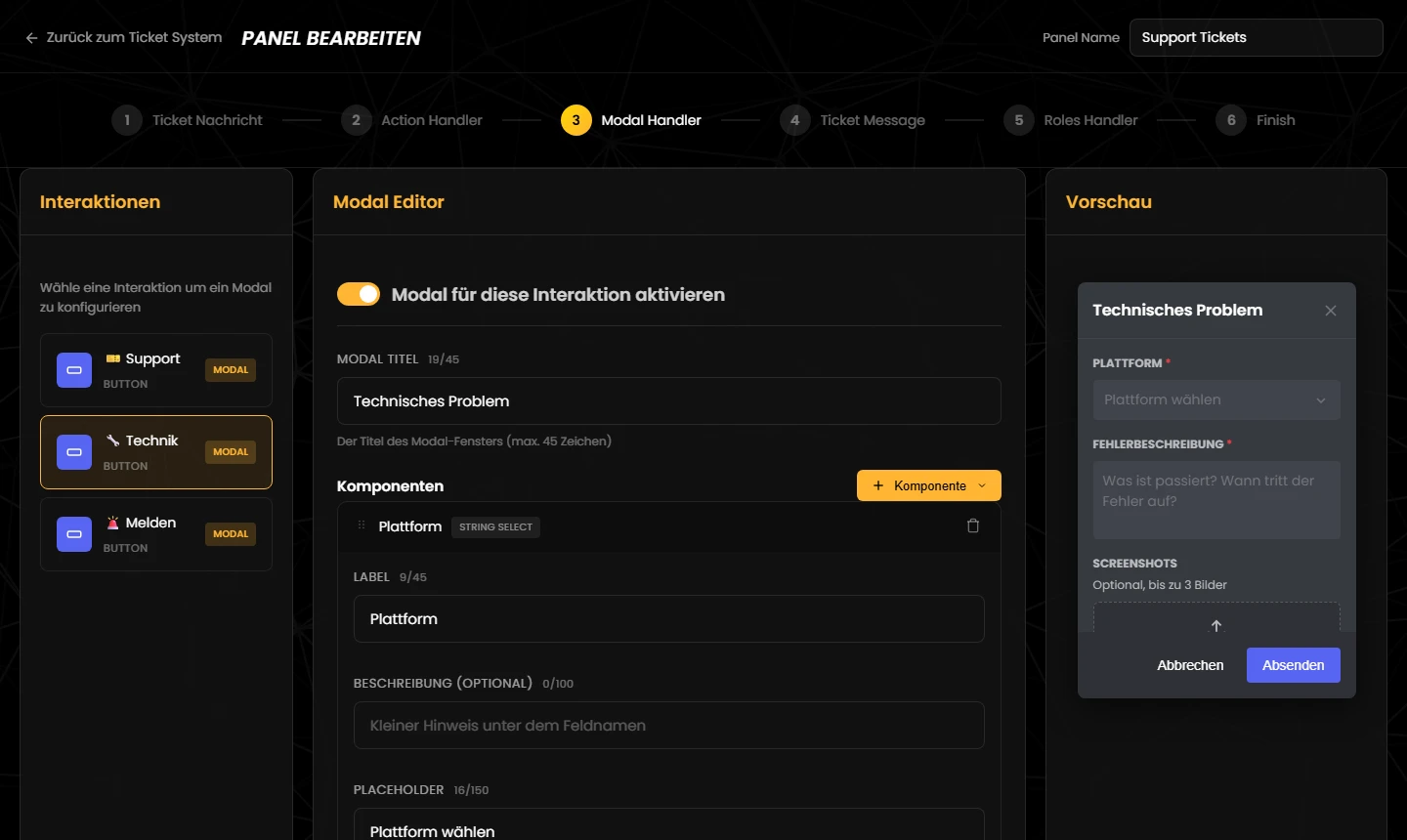
Jede Interaktion kann ihr eigenes Formular haben. So fragt etwa der Button „Technik“ nach Plattform und Screenshots, während „Melden“ nach dem betroffenen Fahrer fragt.
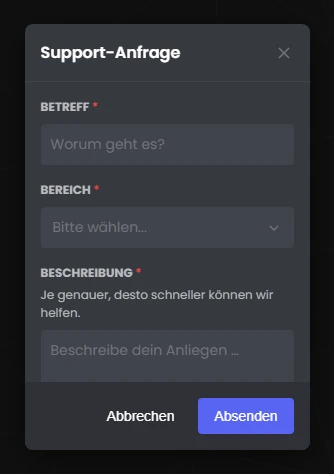
When a member clicks a button (or picks an option), Discord shows a window with input fields. Only after “Submit” does the bot create the ticket; the answers then appear in the ticket channel. If the member closes the window, nothing happens – no ticket is created.
Every interaction can have its own form. The “Technical” button might ask for the platform and screenshots, while “Report” asks for the driver involved.
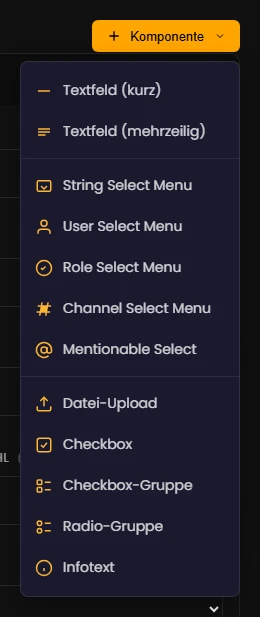
Jedes Formular hat höchstens fünf Felder. Diese Typen stehen zur Wahl:
Eine Zeile, etwa für Ingame-Namen oder einen Betreff. Einstellbar: Placeholder (bis 100 Zeichen), Min. und Max. Zeichen (0–4000, Standard höchstens 100) und ein vorbelegter Text. Antwort: der eingegebene Text.
Ein großes Feld für Beschreibungen. Dieselben Einstellungen wie das kurze Textfeld, Standard höchstens 4000 Zeichen. Antwort: der eingegebene Text.
Eine Auswahlliste mit eigenen Optionen (bis 25). Jede Option hat ein Label (bis 100 Zeichen) und optional ein Emoji, eine Beschreibung und eine Vorauswahl. Dazu Min. und Max. Auswahl (0–25 bzw. 1–25) und ein Placeholder. Ein neues Feld startet ohne Optionen. Antwort: die Labels der gewählten Optionen, mit Komma getrennt.
Auswahl von Servermitgliedern, etwa „Betroffener Fahrer“. Einstellbar: Placeholder, Min. und Max. Auswahl. Antwort: Erwähnungen der gewählten Mitglieder. Diese bekommen dadurch keinen Zugang zum Ticket.
Auswahl von Server-Rollen, etwa „Für welches Team fährst du?“. Einstellbar: Placeholder, Min. und Max. Auswahl. Antwort: die gewählten Rollen als Erwähnung.
Auswahl von Kanälen. Unter „Kanaltypen“ grenzt du ein: Text, Sprache, Kategorie, Ankündigung, Stage, Forum – keiner gewählt heißt alle. Antwort: Links zu den gewählten Kanälen.
Auswahl von Mitgliedern oder Rollen in einem Feld. Einstellbar: Placeholder, Min. und Max. Auswahl. Antwort: Erwähnungen, erst Mitglieder, dann Rollen.
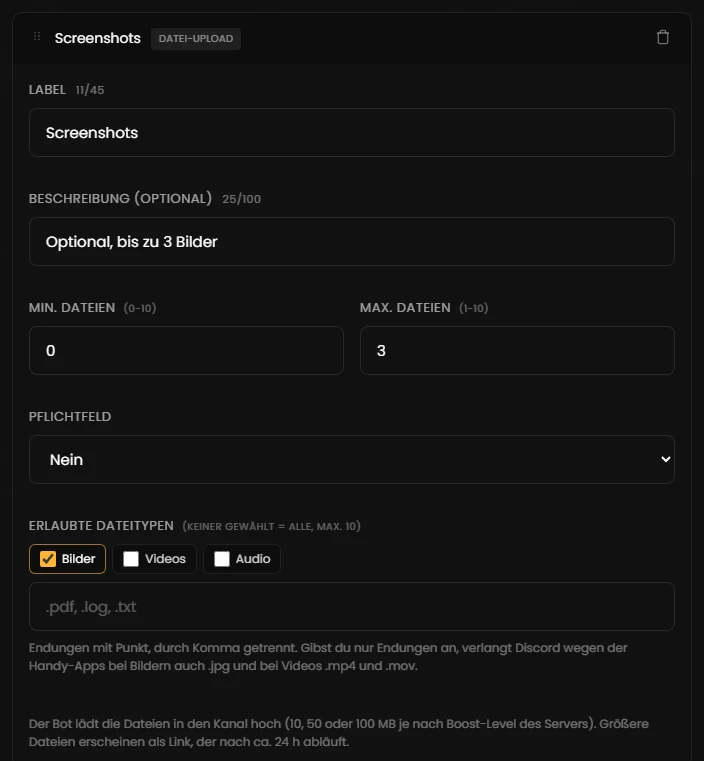
Mitglieder hängen Dateien an, etwa Screenshots oder Log-Dateien. Einstellbar: Min. und Max. Dateien (0–10 bzw. 1–10) und die erlaubten Dateitypen – Bilder, Videos, Audio und/oder Endungen wie .pdf, .log, .txt (höchstens 10; keiner gewählt heißt alle). Antwort: die Dateinamen; die Dateien selbst postet der Bot direkt nach der Willkommensnachricht. Mehr zu Uploads
Ein einzelnes Häkchen, zum Beispiel „Benachrichtigung per DM“. Einstellbar: „Vorab angehakt“. Eine einzelne Checkbox kann Discord nicht zur Pflicht machen. Antwort: „✅ Ja“ oder „❌ Nein“.
Mehrere Häkchen zur Auswahl (bis 10 Optionen), etwa verfügbare Renntage. Einstellbar: Min. und Max. Auswahl (0–10 bzw. 1–10), Vorauswahl je Option. Antwort: die Labels der angehakten Optionen.
Genau eine Antwort aus 2 bis 10 Optionen, etwa die Plattform. Höchstens eine Option darf vorausgewählt sein. Antwort: das Label der gewählten Option.
Ein Hinweistext ohne Eingabe, bis 4000 Zeichen, Markdown wie **fett** funktioniert. Gut für Regeln oder Erklärungen vor dem Ausfüllen. Belegt einen der fünf Plätze. Antwort: keine.
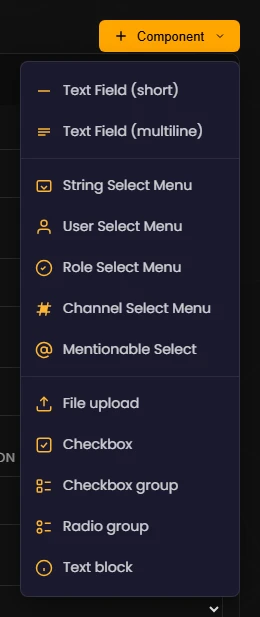
Each form has at most five fields. These types are available:
A single line, for example for an in-game name or a subject. Settings: placeholder (up to 100 characters), min. and max. characters (0–4,000, by default at most 100) and pre-filled text. Answer: the text entered.
A large field for descriptions. Same settings as the short text field, by default up to 4,000 characters. Answer: the text entered.
A drop-down with your own options (up to 25). Each option has a label (up to 100 characters) and, optionally, an emoji, a description and a preselection. Plus min. and max. selection (0–25 and 1–25) and a placeholder. A new field starts without options. Answer: the labels of the chosen options, separated by commas.
Pick server members, for example “Driver involved”. Settings: placeholder, min. and max. selection. Answer: mentions of the chosen members. They do not get access to the ticket because of this.
Pick server roles, for example “Which team do you drive for?”. Settings: placeholder, min. and max. selection. Answer: the chosen roles as mentions.
Pick channels. Under “Channel types” you can narrow it down: Text, Voice, Category, Announcement, Stage, Forum – none selected means all. Answer: links to the chosen channels.
Pick members or roles in one field. Settings: placeholder, min. and max. selection. Answer: mentions, members first, then roles.
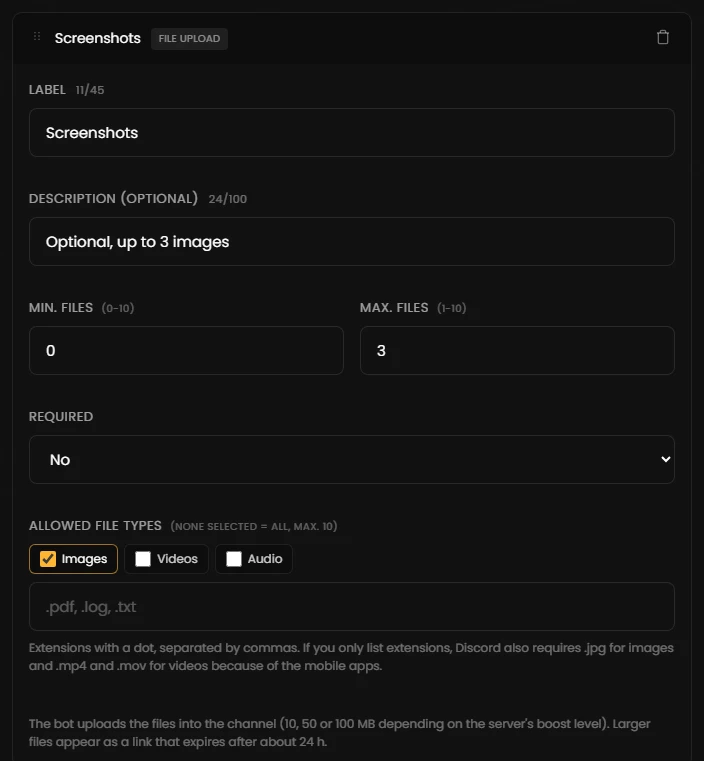
Members attach files, for example screenshots or log files. Settings: min. and max. files (0–10 and 1–10) and the allowed file types – images, videos, audio and/or extensions such as .pdf, .log, .txt (at most 10; none selected means all). Answer: the file names; the bot posts the files themselves right after the welcome message. More on uploads
A single tick box, for example “Notify me by DM”. Setting: “Checked by default”. Discord cannot make a single checkbox required. Answer: “✅ Yes” or “❌ No”.
Several tick boxes (up to 10 options), for example available race days. Settings: min. and max. selection (0–10 and 1–10), preselection per option. Answer: the labels of the ticked options.
Exactly one answer out of 2 to 10 options, for example the platform. At most one option may be preselected. Answer: the label of the chosen option.
An information text without input, up to 4,000 characters; Markdown like **bold** works. Good for rules or explanations before filling in. Takes one of the five slots. Answer: none.
| Einstellung | Bedeutung |
|---|---|
| Label Pflicht | Der Feldname über dem Eingabefeld, bis 45 Zeichen. Er muss im Formular eindeutig sein, denn über ihn setzt du die Antwort mit {modal:Label} in Nachrichten ein. |
| Beschreibung (optional) | Ein kurzer Hinweis unter dem Feldnamen, bis 100 Zeichen – gut für Beispiele. |
| Pflichtfeld | „Ja“ (Standard) oder „Nein“. Pflichtfelder tragen in Discord ein rotes Sternchen. Beim Datei-Upload und bei der Checkbox-Gruppe hängt „Pflicht“ am Minimum: Pflicht heißt mindestens 1. Checkbox und Infotext haben keine Pflicht-Einstellung. |
| Setting | Meaning |
|---|---|
| Label required | The field name above the input, up to 45 characters. It must be unique within the form, because you insert the answer into messages with {modal:Label}. |
| Description (optional) | A short hint below the field name, up to 100 characters – good for examples. |
| Required | “Yes” (default) or “No”. Required fields have a red asterisk in Discord. For file uploads and checkbox groups, “required” is tied to the minimum: required means at least 1. Checkbox and text block have no required setting. |
{modal:Feldname} selbst ein, zum Beispiel {modal:Betreff}. Der Name muss genau dem Label entsprechen.Beispiel – Typ „Nachricht“ mit ausgefülltem Formular:
.jpg und bei Videos .mp4 und .mov.{modal:Field name}, for example {modal:Subject}. The name must match the label exactly.Example – “Message” type with a filled-in form:
.jpg for images and .mp4 and .mov for videos because of the mobile apps.Der Editor prüft jedes Formular, bevor du speichern kannst. Probleme erscheinen in Schritt 6 als „Modal für "…": …“. In den Anführungszeichen steht die interne Kennung der Interaktion (etwa btn_…), nicht die Beschriftung. Die häufigsten Meldungen:
| Meldung | Lösung |
|---|---|
| Ein Modal kann höchstens 5 Felder haben. | Ein Feld entfernen; Infotexte zählen mit. |
| Feld N hat keinen Feldnamen. | Ein Label eintragen. |
| Feldname „X“ kommt doppelt vor … | Eines der Felder umbenennen, damit {modal:X} eindeutig ist. |
| Feld N hat keine Optionen. | Mindestens eine Option anlegen (Auswahlliste, Checkbox-Gruppe). |
| Radio-Gruppe (Feld N) braucht mindestens 2 Optionen. | Eine zweite Option anlegen. |
| Feld N: Min. Auswahl (a) ist größer als die Zahl der Optionen (b). | Minimum senken oder Optionen ergänzen. |
| Feld N: Min. Zeichen (a) ist größer als Max. Zeichen (b). | Grenzen tauschen oder anpassen. |
| Vorbelegter Text von Feld N ist länger als Max. Zeichen … | Vorbelegten Text kürzen oder Maximum erhöhen. |
| Feld N: Emoji von Option O ist ungültig … | Ein einzelnes Emoji wie 🎫 oder ein Server-Emoji im Format <:name:id> verwenden. |
| Feld N: Dateityp „x“ ist ungültig … | Nur Bilder, Videos, Audio oder Endungen wie .pdf angeben, höchstens 10. |
| Radio-Gruppe (Feld N) erlaubt nur eine Vorauswahl. | Bei allen außer einer Option die Vorauswahl entfernen. |
Nur Warnungen (Speichern möglich) sind: ein Formular ohne Titel und ein eingeschaltetes Formular ohne Felder.
The editor checks every form before you can save. Problems appear in step 6 as “Modal "…": …”. The quotes contain the internal ID of the interaction (such as btn_…), not its label. The most common messages:
| Message | Fix |
|---|---|
| A modal can have at most 5 fields | Remove a field; text blocks count too. |
| Field N has no label | Enter a label. |
| Label "X" is used twice (fields A and B) | Rename one of the fields so that {modal:X} is unique. |
| Field N has no options | Add at least one option (select menu, checkbox group). |
| Radio group (field N) needs at least 2 options | Add a second option. |
| Field N: min values is greater than the number of options | Lower the minimum or add options. |
| Field N: min length is greater than max length | Swap or adjust the limits. |
| Pre-filled text of field N is longer than its max length | Shorten the pre-filled text or raise the maximum. |
| Field N: emoji of option O is invalid | Use a single emoji like 🎫 or a server emoji in the format <:name:id>. |
| Field N: invalid file type | Only use images, videos, audio or extensions like .pdf, at most 10. |
| Radio group (field N) allows only one default | Remove the preselection from all options but one. |
Only warnings (saving still possible) are: a form without a title and a form that is switched on but has no fields.
{modal:Betreff} einsetzen.{modal:Subject}.Tritt unserem Discord-Server bei – das Team hilft dir bei der Einrichtung gerne weiter.
Join our Discord server – the team is happy to help you with the setup.